Your side of the counter.
Every prescription arrives typed, signed and in one queue. Your staff move it from Submitted to Shipped, ask questions on the record, and log the lot that went out the door.
The queue
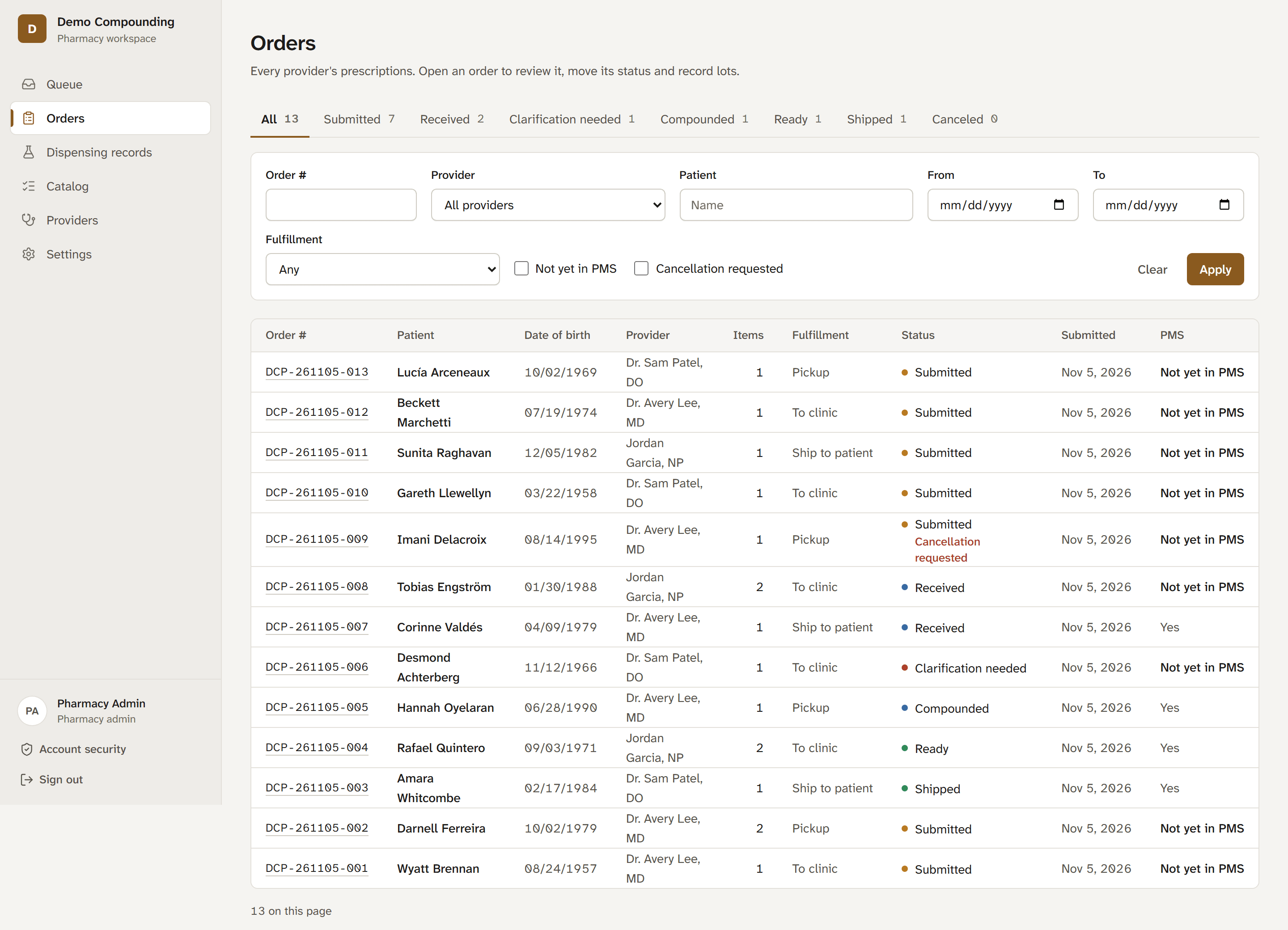
Orders from every prescriber, oldest first, with tabs and a count for each status.
- Statuses your staff set. Submitted, Received, Clarification needed, Compounded, Ready, Shipped. Pickup orders finish at Ready. Opening a new order marks it Received.
- Filters that match the work. Order number, prescriber, patient, dates, fulfillment, cancellation requests, and orders not yet in your pharmacy system.
- Typed into PMS. A box on each order to mark once it’s in your pharmacy system, to help keep orders from being entered twice or missed. RxPortal doesn’t connect to that system; your staff still enter the order there.
- Cancellations you decide. A prescriber can ask to cancel an order that hasn’t been compounded. You confirm or decline, with a reason if you like.
- Internal notes. Notes for your staff on each order. Prescribers never see them.

Clarifications
A question to the prescriber, written on the order itself, and answered with a corrected, signed prescription.
- Ask in the order. Move it to Clarification needed and write your question. It goes into a thread on that order, and the prescriber sees it on their dashboard.
- They fix it and sign again. The prescriber edits the prescription and re-signs it. It comes back as version 2 with the same order number, Submitted again.
- Both versions kept. Open the earlier version at any time to see exactly what changed.
Lots and the recall lookup
The record an inspector or a recall will ask for, kept as you work.
- A lot on every line before Ready. Lot number and expiration for each dispensed item. An order can’t be marked Ready with a line missing one, or with a lot that has expired.
- History, not overwrites. Correcting a lot adds a new entry with who made it and when. The earlier entry stays.
- “Who got lot 24-0613?” Dispensing records searches by lot or product and lists every patient, order, prescriber and dispensed date.
- Export, with a trail. Export the list as a spreadsheet file. Only staff you allow can export, and every search and export is logged.
Your catalog
The formulary your prescribers order from, and nothing else.
- Products and sizes. Strength, dosage form, routes, storage, beyond-use date and a price for each size. Units-dosed products carry their concentration.
- Publish when ready. Draft a product, then publish it. Mark it out of stock and prescribers can’t order it until you mark it available again.
- Every change versioned. Editing a product saves a new version. Earlier orders keep the version they were written against.
- DEA schedule recorded. Each product carries its schedule. Controlled products can’t be ordered through the portal.
- Prices for reference. Prescribers see your prices, VIP discounts applied. RxPortal never takes payment.
Your prescribers and staff
You decide who is in, and what each person can do.
- Invite or approve. Invite a prescriber, or let them request an account from your portal. Their NPI and DEA numbers are checked for a valid format before the request reaches you, and nobody orders until you approve them.
- VIP pricing. For the prescribers you choose, a standing discount on the reference prices they see.
- Staff permissions. Admins and staff. You choose which staff can manage the catalog, approve prescribers or export dispensing records.
- Your brand. Upload your logo and set your colors. If a color would make text hard to read, RxPortal adjusts it so buttons and text stay legible.
See your side of it.
We’ll walk you through the queue, a clarification and a lot lookup with demo orders, then answer your questions.